SIPMediaGW: multi-platform room connector
Overview
The SIPMediaGW multi-platform room connector is an interoperability gateway that dynamically links meeting-room videoconferencing systems to a WebRTC-compatible videoconferencing platform such as:
- Rendez-Vous (RENATER)
- Webinaire de l'État (DINUM)
- Visio (DINUM)
- BigBlueButton for the higher education and research community (FUN)
A room system (SIP or compatible) can call the connector to join a videoconference, whatever its manufacturer or technical environment.
How to use the SIP room connectors
Create the meeting (required)
First, create your meeting on the target platform:
The room connector cannot create or start a conference.
Find the right conference identifier
The identifier to enter depends on the platform:
- Rendez-Vous (RENATER) and Visio (DINUM) → the conference name, i.e. the end of the conference URL.
- Webinaire de l'État (DINUM) → the 9-digit invitation code given to participants.
- BBB ESR (FUN) → the full access URL of the BBB conference, obtained from Marsha, Greenlight…
Once you have this identifier, you can generate the SIP address in the next step.
Generate the SIP address
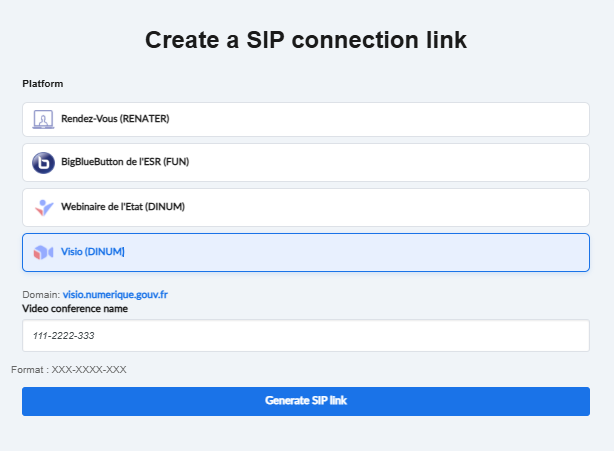
Go to: visiohub.renater.fr/sipuri
Then:
- Choose the target platform
- Enter the conference name
- Click "Generate SIP link"
You get an address of the form:
sip:[platform_number].[conference_number]@rdv.visio.renater.fr
Join the meeting from the room
Option A: call the meeting directly
sip:[platform_number].[conference_number]@194.57.7.21- or
sip:[platform_number].[conference_number]@visiohub.renater.fr
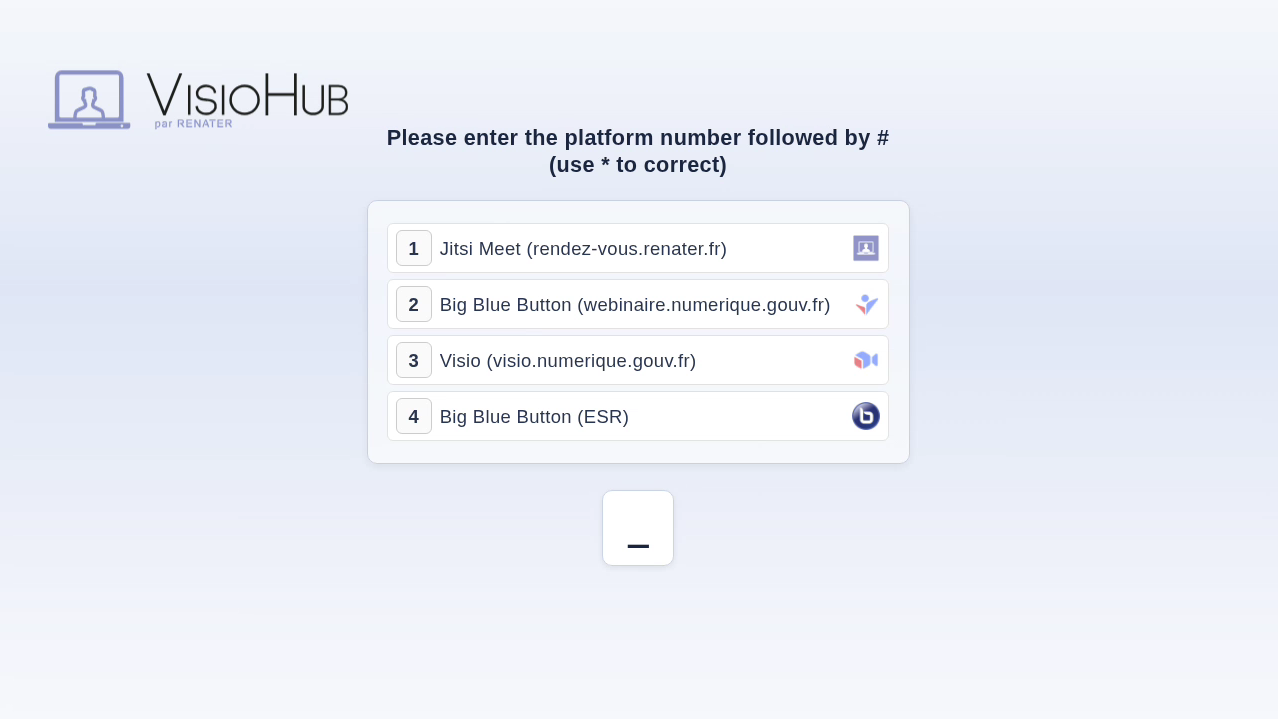
Option B: call through the interactive menu
- Call:
sip:9@visiohub.renater.fr - Select the platform, then enter the conference number.
Option B bis: interactive menu and QR code
- Call:
sip:9@visiohub.renater.fr - Scan the QR code shown on screen (or go to visiohub.renater.fr). It opens a remote-control page that lets you:
- select the platform
- enter the meeting name and the room's display name
- interact with the in-meeting UI
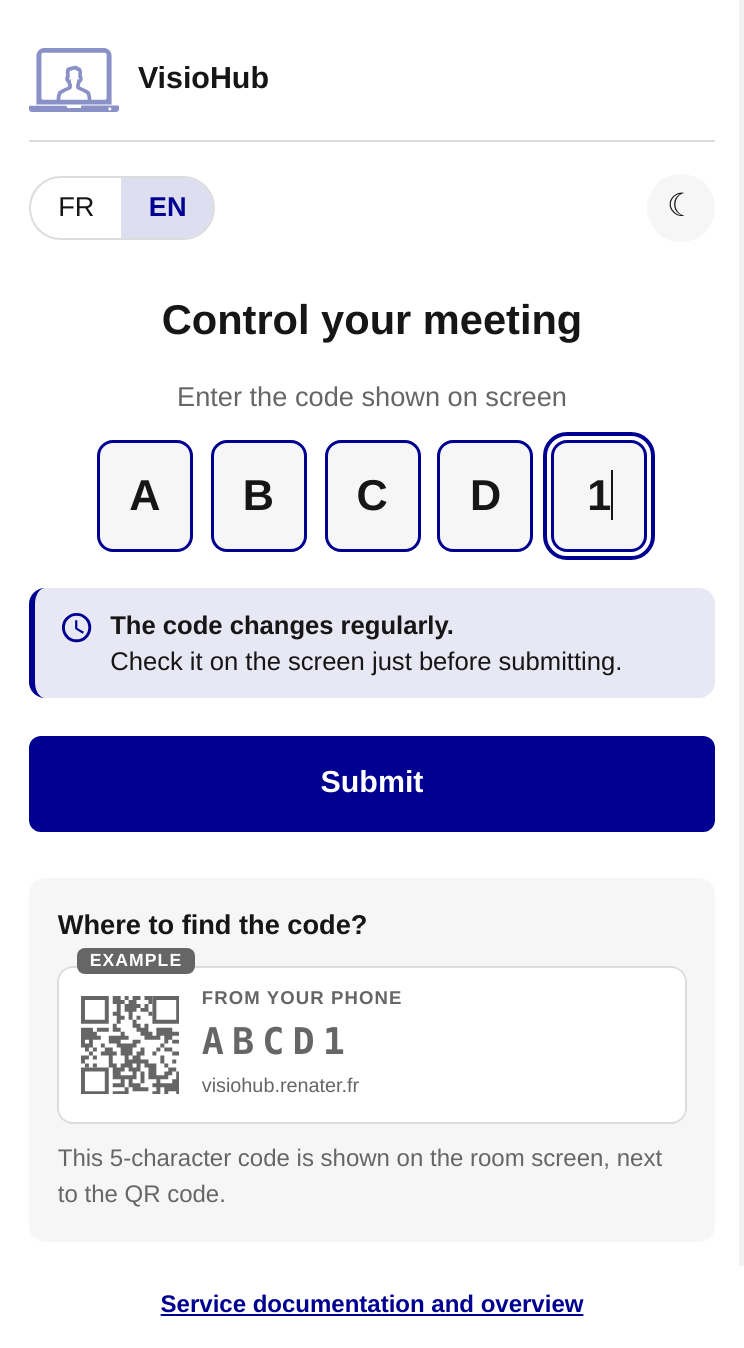
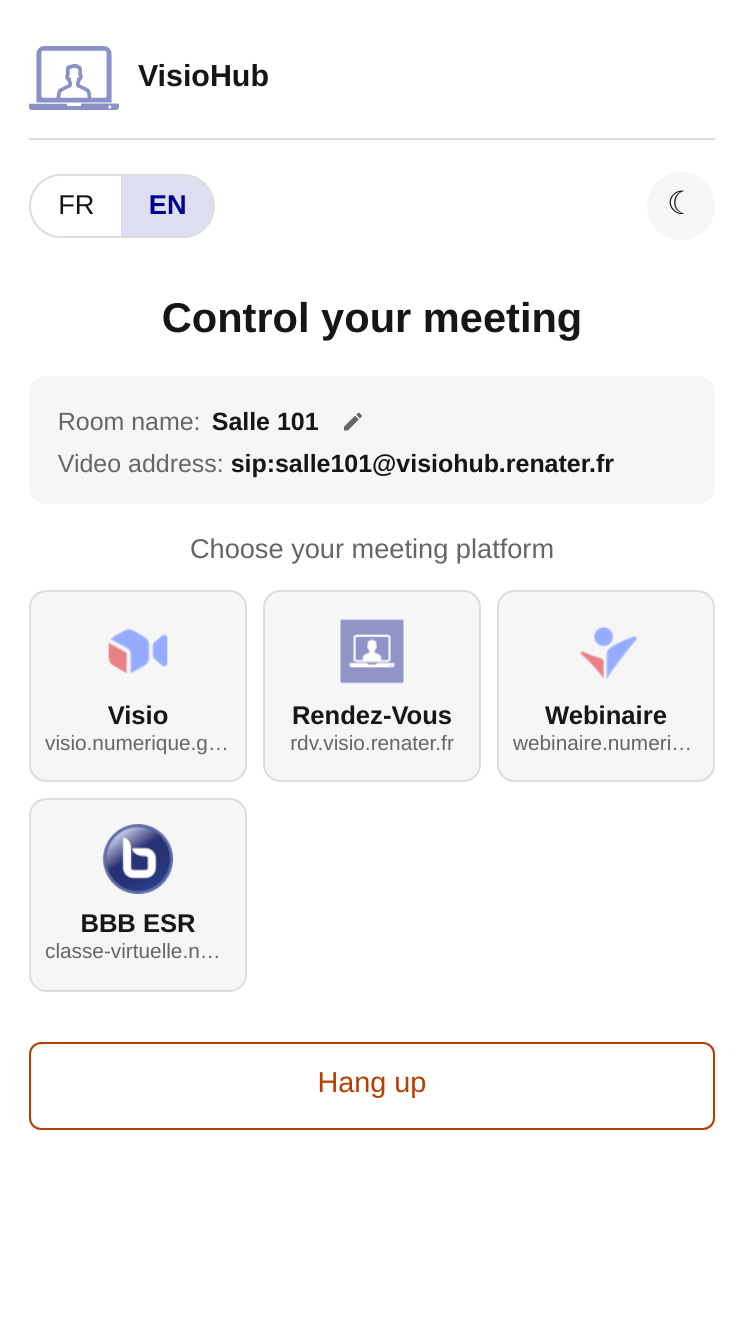
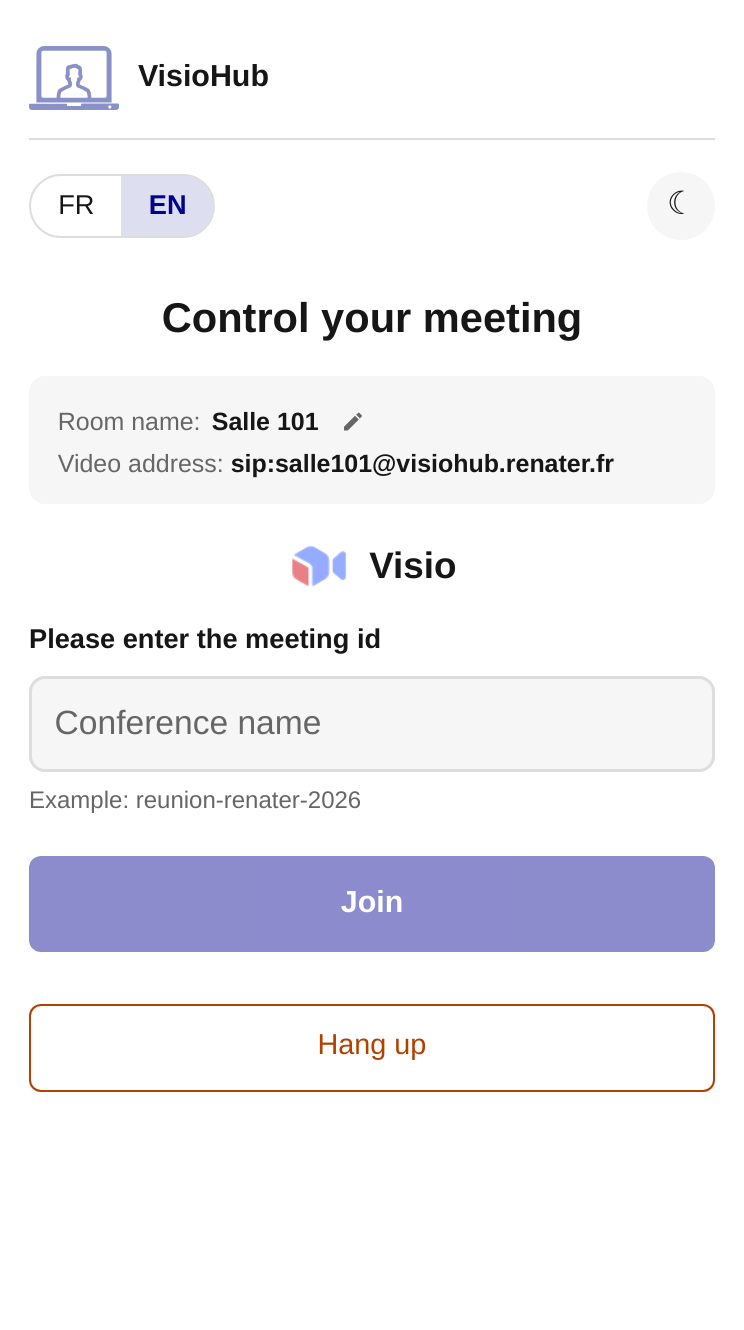
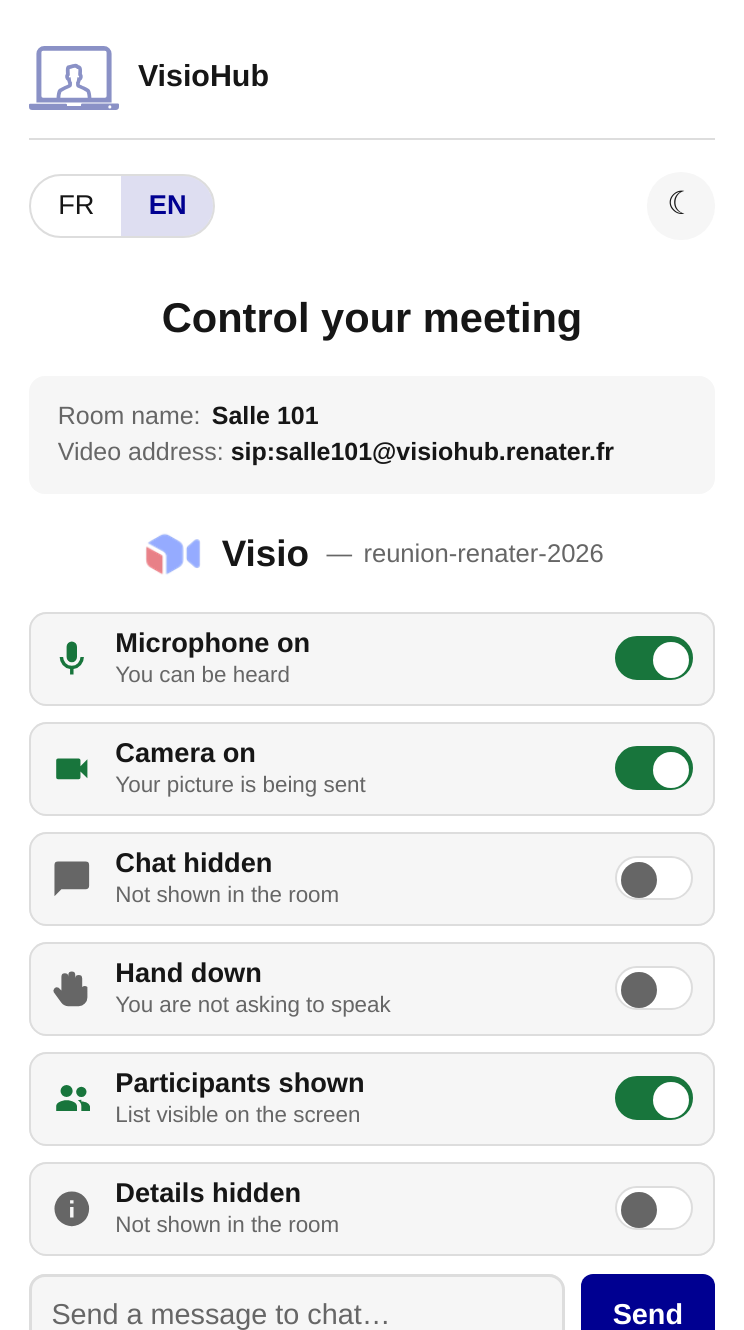
This option replaces step 2 (generating the SIP address): the meeting name can be entered directly in this web interface.
Interact during the meeting
Once connected, press # to show the menu.
Available functions:
- raise your hand
- change the layout
- show the chat
- view the participants
Share content
Content sharing is supported through BFCP (presentation), usually exposed on room systems through an HDMI/VGA input.
Known limitations
- A conference cannot be started through the connector
- The meeting must exist and be active
Compatibility
Compatible with SIP equipment (RFC 3261), validated with:
Configuring your equipment
Enable the SIP protocol
To connect your equipment, set it to use the SIP protocol (RFC 3261) when it calls the room connector. Refer to the equipment's manual or to your videoconferencing integrator for this configuration.
Add the room connector address to the equipment's address book
To make the SIPMediaGW room connectors easier to use, you can add the interactive menu number to your equipment's address book:
sip:9@visiohub.renater.fr- or
sip:9@194.57.7.21if your equipment does not resolve domain names
Make sure media streams can be received
To communicate, a videoconferencing system must provide a public address on which it will receive media streams (audio and video). There are two ways to do this:
- Assign a public IP address to your equipment.
- Set up an explicit NAT between your equipment's IP address and one of your public IP addresses.
If you use NAT, you must also configure your equipment to use the translated public address. In the Network or Firewall menu of the equipment's administration interface, enter the public address in the "NAT Address" setting.
Network configuration
To make video calls to the SIP room connectors work properly, make sure the following rules are allowed on your security equipment.
Our servers' IP addresses
- SIP access servers (RFC 3261):
194.57.7.21 - TURN media servers:
80.247.15.18
Our servers' FQDN
- SIP/TLS access servers:
visiohub.renater.fr
Protocols and ports to open
To the SIP servers:
| Port | Transport | Application |
|---|---|---|
| 5060 | tcp | SIP |
| 5060 | udp | SIP |
| 5061 | tcp | SIP/TLS |
From your equipment to the TURN media servers:
| Port | Transport | Application |
|---|---|---|
| 40000-49999 | udp | rtp, rtcp, bfcp |